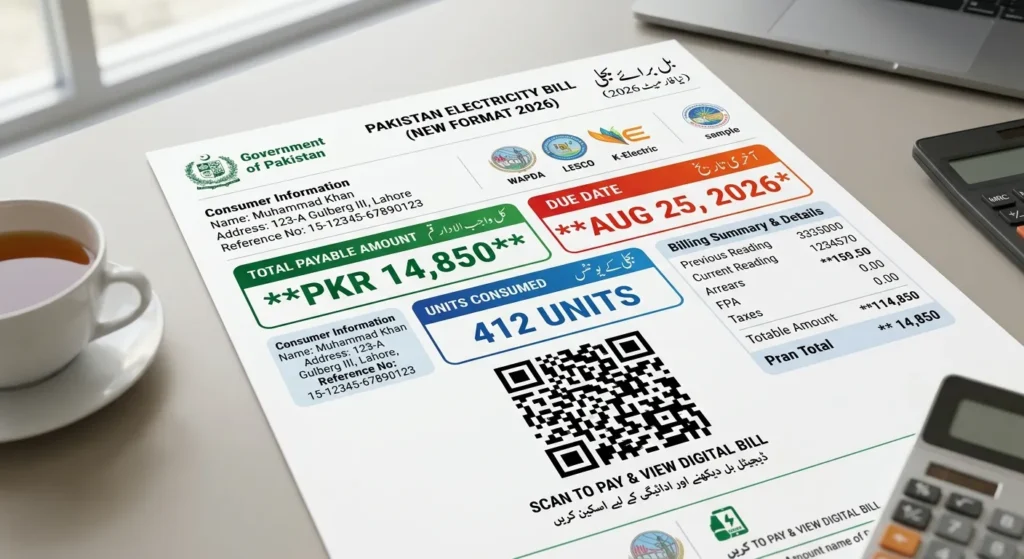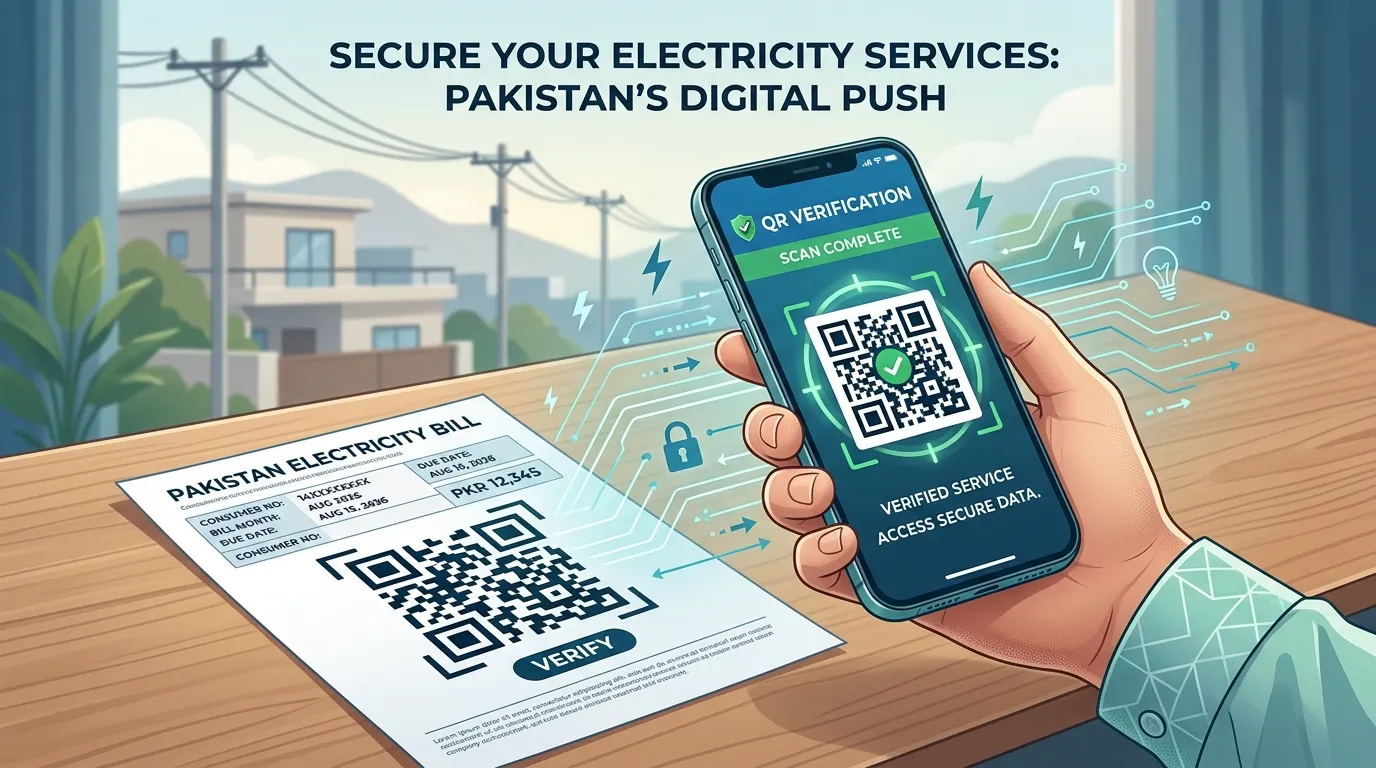
Pakistan’s electricity bills may include QR codes that provide access to digital services, billing information, or verification portals. If you are searching for how to scan a QR code on an electricity bill, you can usually scan it using your smartphone’s camera or a QR code scanner.
The purpose of the QR code can vary depending on the electricity distribution company, bill format, or government program.
Important: Not every QR code on an electricity bill is related to subsidy registration. Always check the website or portal before entering personal information.
How to Scan a QR Code on an Electricity Bill
Follow these simple steps to scan the QR code on your electricity bill.
Step 1: Find the QR Code on Your Bill
Take your latest electricity bill and locate the square-shaped QR code printed on it.
The exact location of the QR code may vary depending on the electricity company and bill format. It may appear near important billing information such as the reference number, consumer details, or total payable amount.
Step 2: Open Your Phone Camera
Open the default Camera app on your Android phone or iPhone.
Most modern smartphones have a built-in QR code scanner, so you may not need to install a separate application.
Step 3: Point Your Camera at the QR Code
Hold your phone steady and point the camera directly at the QR code.
Make sure that:
- The QR code is clearly visible.
- The bill is placed in good lighting.
- Your camera lens is clean.
- The QR code is not blurry or damaged.
Step 4: Wait for the Link to Appear
After your phone recognizes the QR code, a notification or web link should appear on your screen.
Tap the link to open it.
Before entering any personal information, check that the website belongs to an official government authority, electricity company, or other trusted organization.
Step 5: Complete Verification if Required
Some QR codes may direct consumers to an online verification or registration portal.
Depending on the service or program, you may be asked to provide information such as:
- Your 14-digit electricity bill reference number
- CNIC number
- Registered mobile number
- One-time password (OTP)
Only enter this information on an official and trusted website.
How to Scan an Electricity Bill QR Code for Subsidy Verification
If the QR code on your electricity bill is connected to a government subsidy or verification program, follow the instructions shown on the official portal.
The process may include the following steps:
- Scan the QR code using your phone.
- Open the official verification portal.
- Check or enter your electricity bill reference number.
- Enter your CNIC number if required.
- Provide the mobile number registered under your CNIC.
- Enter the OTP received by SMS.
- Complete the verification process.
Never share your OTP with another person.
If the QR code on your electricity bill is connected to a government subsidy or verification program, follow the instructions provided through the relevant official portal. For example, reports about electricity subsidy verification have explained how consumers may be required to scan the QR code and complete digital verification before receiving applicable benefits. You can learn more about the reported verification process through this detailed guide by Aaj News.
Where Is the QR Code Located on an Electricity Bill?
The location of the QR code can vary depending on the electricity company and the bill design.
You may find it near:
- The electricity bill reference number
- Consumer information
- Billing details
- Total payable amount
Older electricity bill formats may not include a QR code, so do not assume that every bill will have one.
How to Scan an Electricity Bill QR Code on Android
Android users can usually scan a QR code without installing a separate app.
- Open the Camera app.
- Point the camera at the QR code.
- Keep the phone steady for a few seconds.
- Wait for the link or notification to appear.
- Tap the link to open it.
If your camera does not recognize the code, you can try using Google Lens.
How to Scan an Electricity Bill QR Code on iPhone
To scan a QR code on an iPhone:
- Open the Camera app.
- Place the QR code inside the camera frame.
- Wait for a notification to appear.
- Tap the notification to open the linked page.
You can also use the built-in Code Scanner feature if needed.
What Should I Do If the QR Code Does Not Scan?
If your electricity bill QR code is not working, try the following solutions.
Clean Your Camera Lens
A dirty camera lens can prevent your phone from reading the QR code correctly.
Improve the Lighting
Place the bill in a well-lit area and avoid shadows covering the QR code.
Keep Your Phone Steady
Hold your phone at a comfortable distance from the QR code and allow the camera to focus.
Use Google Lens
If your Android camera does not detect the QR code, Google Lens may help scan it.
Try Another Trusted QR Code Scanner
You can use a trusted QR code scanner if your phone does not support built-in QR scanning.
Enter Your Reference Number Manually
If the QR code is damaged or unreadable, visit the relevant official portal and enter your electricity bill reference number manually, if that option is available.
Is It Safe to Scan the QR Code on an Electricity Bill?
Scanning a QR code printed on an official electricity bill can be safe, but you should always verify the destination website before entering sensitive information.
Before submitting your details, check that:
- The website belongs to an official or trusted organization.
- The website uses a secure HTTPS connection.
- The domain name does not look suspicious.
- You do not share your OTP with anyone.
Be especially careful with QR codes received through unknown WhatsApp messages, social media posts, or unofficial documents.
Can I Scan an Electricity Bill QR Code Online?
If you have an image or screenshot of your electricity bill, some smartphones can scan the QR code directly from the image.
For example, you may be able to use Google Lens or your phone’s built-in image recognition feature.
After scanning the QR code, always verify the website before opening or submitting personal information.
LESCO Electricity Bill QR Code
LESCO consumers may find QR code functionality on newer electricity bill formats. The exact purpose of the QR code can depend on the bill format and the digital services available through the relevant electricity distribution company.
If you simply want to check your latest bill, you can use an online bill checking service with your electricity bill reference number.
Frequently Asked Questions
How do I scan the QR code on my electricity bill?
Open your phone’s Camera app, point it at the QR code, and wait for a link or notification to appear. Tap the link to open the connected page.
Do I need an app to scan an electricity bill QR code?
Usually, no. Most modern Android phones and iPhones can scan QR codes directly using their built-in camera.
What information may be required for electricity subsidy verification?
Depending on the official program, you may need your electricity bill reference number, CNIC number, registered mobile number, and an OTP.
What should I do if my electricity bill QR code is not working?
Try cleaning your camera lens, improving the lighting, using Google Lens, or entering your electricity bill reference number manually on the relevant official portal if available.
Is every QR code on an electricity bill related to subsidy registration?
No. The purpose of a QR code can vary depending on the electricity company, bill format, or government program.
Can I scan a QR code from an electricity bill screenshot?
Yes, many smartphones can scan QR codes from saved images using features such as Google Lens or built-in image recognition tools.
Final Thoughts
Scanning a QR code on an electricity bill is usually simple. Open your phone’s camera, point it at the QR code, and tap the link that appears.
However, the purpose of the QR code may vary. It may provide access to digital electricity services, billing information, verification systems, or other official programs. Always verify the destination website before entering your CNIC, reference number, mobile number, or any other personal information.